

I spent an inordinate amount of time working through Claude/Salesforce documentation to get my Claude connected to Salesforce. So, I wanted to put together this guide to cover the basic steps to get Claude connected to Salesforce. Once connected, there’s lots of options for interacting with your Salesforce via Claude:
How to connect Claude to Salesforce in 4 easy steps:
Step 1:
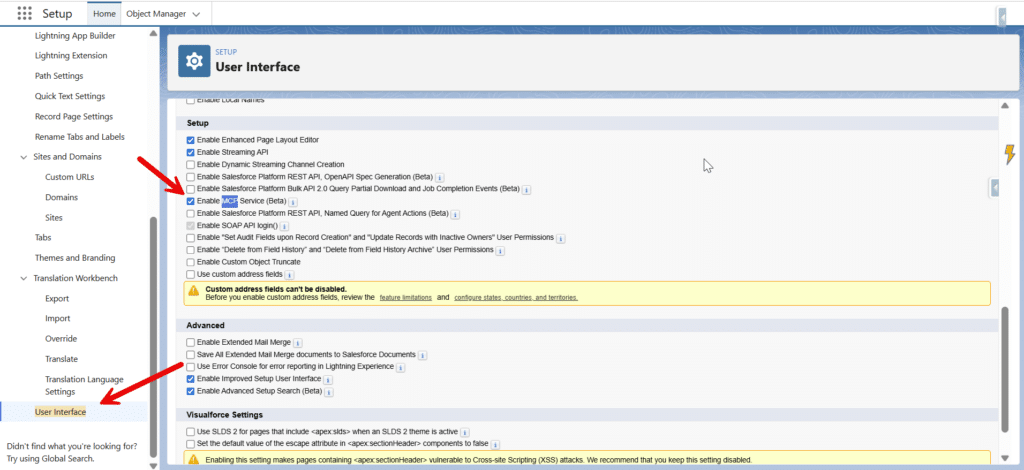
In Salesforce under Setup >> User Interface make sure ‘Enable MCP Service’ is checked:
Step 2:
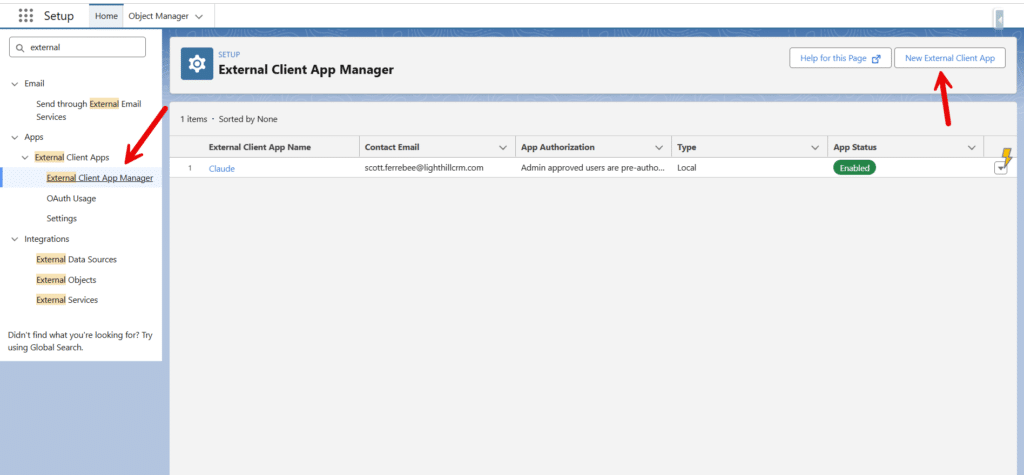
Create a new External Client App:
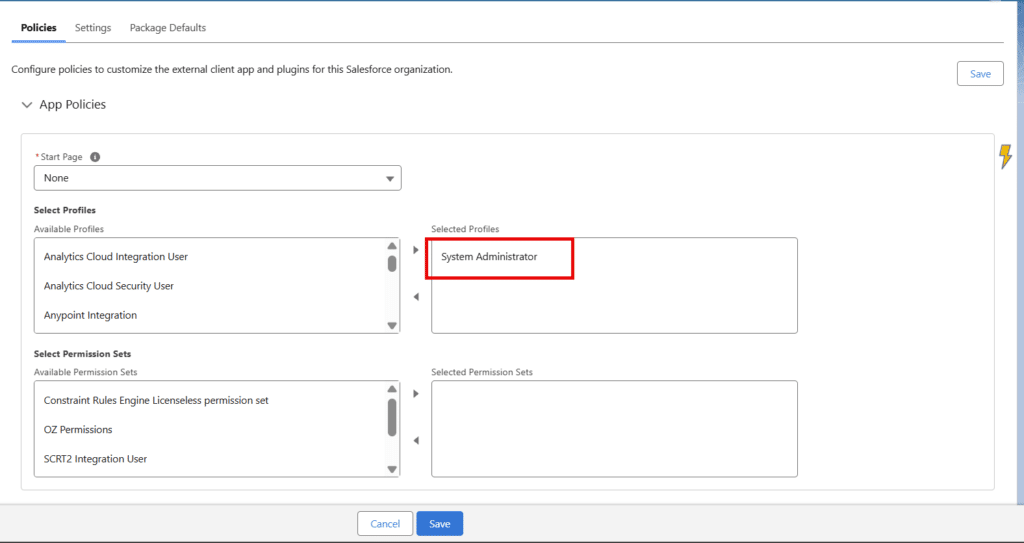
Permission the External App for all Profiles that will use it:
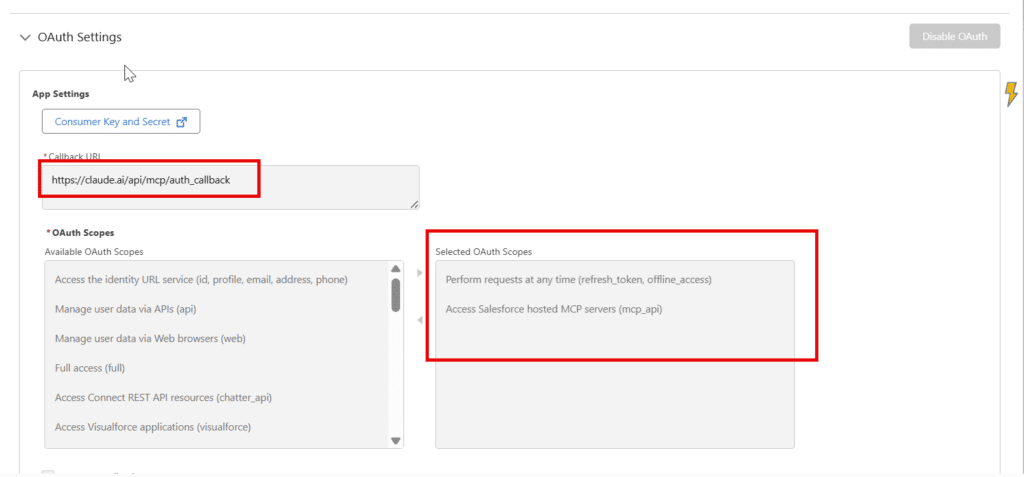
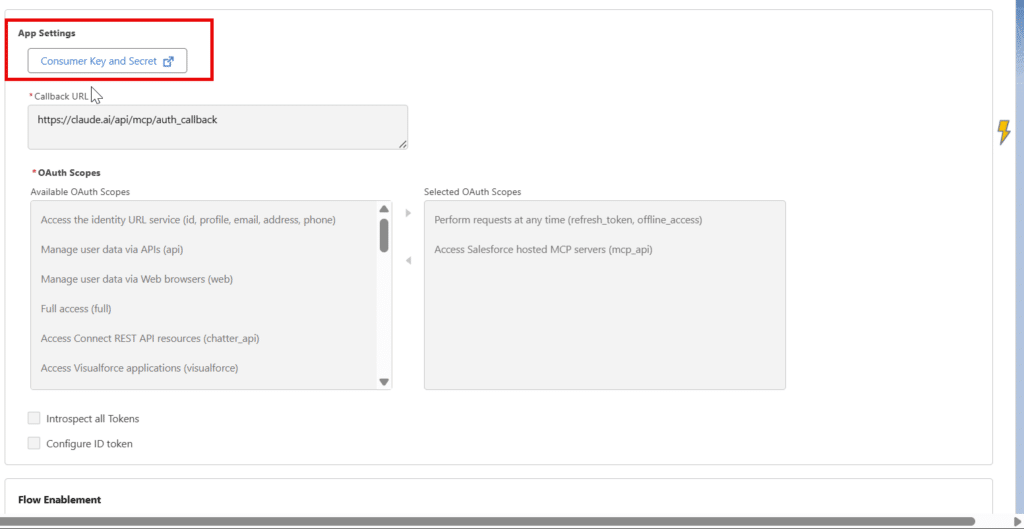
Configure OAuth with these settings – the Callback URL is: https://claude.ai/api/mcp/auth_callback
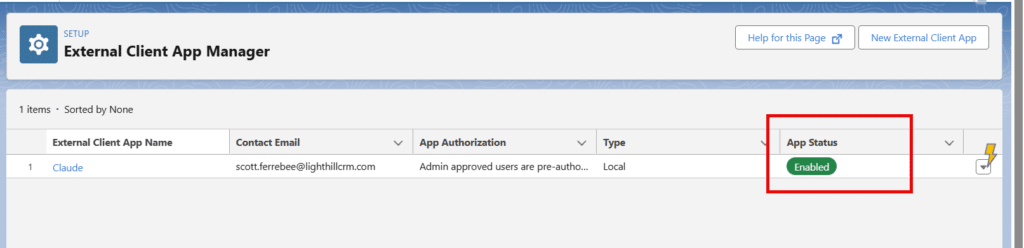
Make sure the App is Enabled:
Under OAuth Settings get your Consumer Key and Secret and save these off – you’ll need them for Claude:
Step 3:
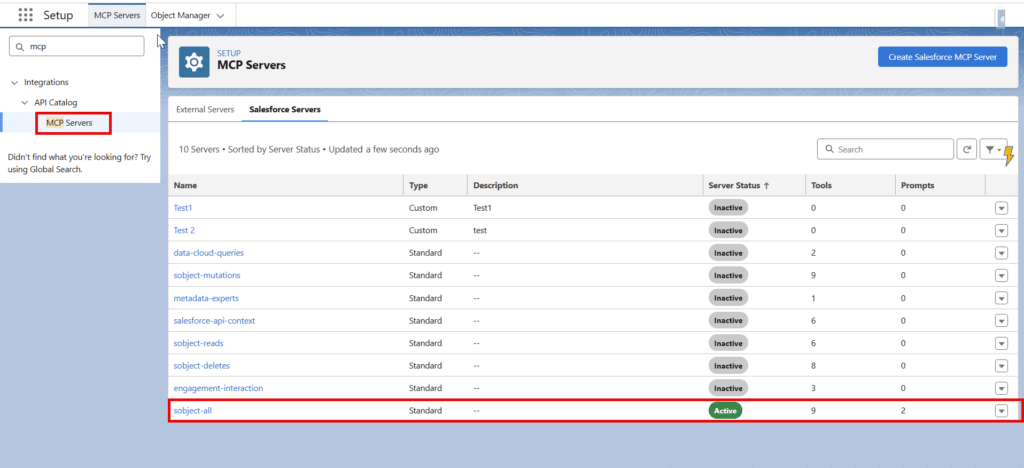
In Salesforce under Setup >> MCP Servers active the sobject-all MCP Server:
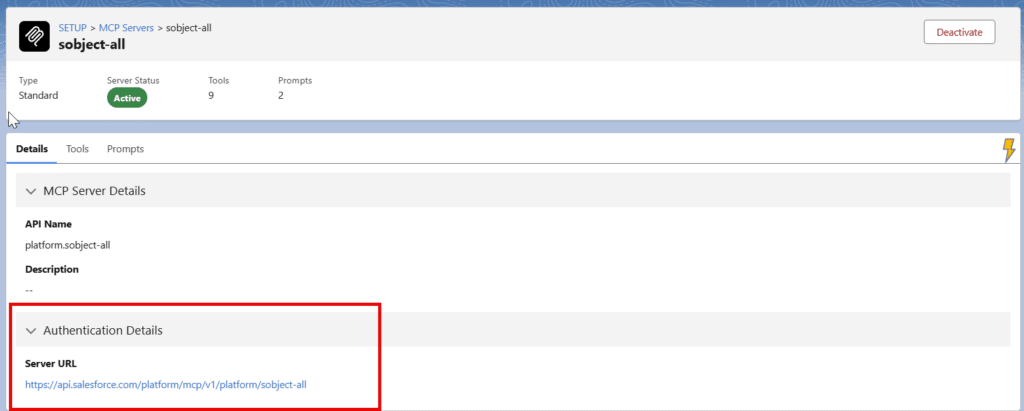
Open this MCP Server and get the Server URL – this is what we’ll add to Claude (in addition to the Consumer Key and Secret):
Step 4:
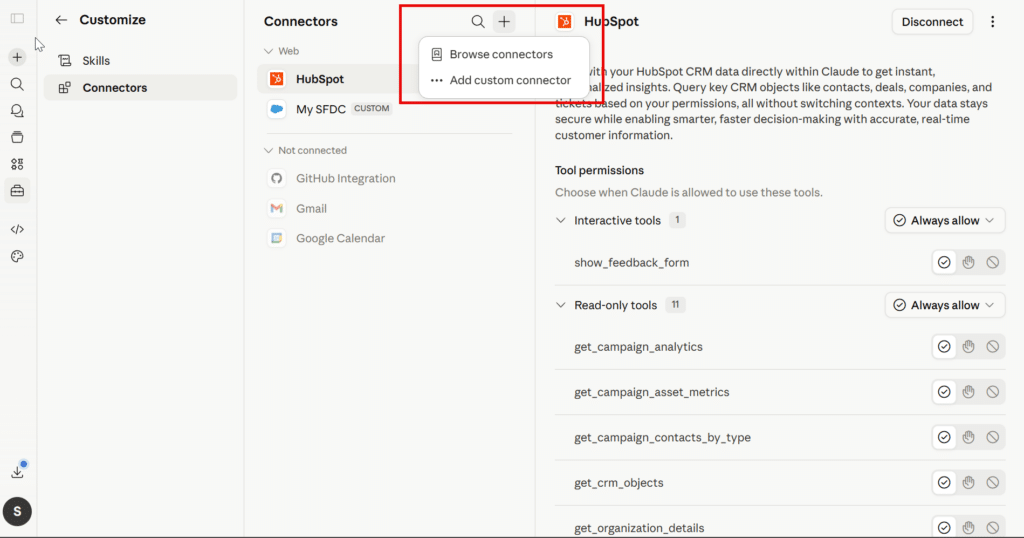
Add Salesforce details to Claude. In Claude we’ll create a Custom Connector. You can find that under Settings >> Connectors (then Claude will bring you to the ‘Customize’ page. Click to add a Custom Connector:
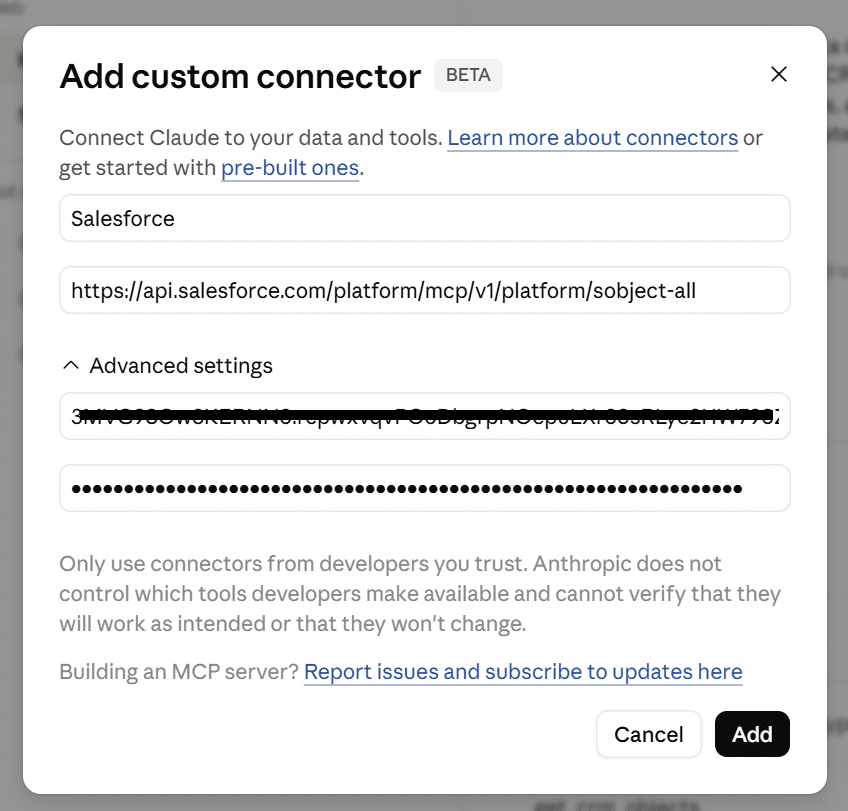
In the Custom Connector add the Server URL and your Consumer Key and Secret from the Salesforce External App:
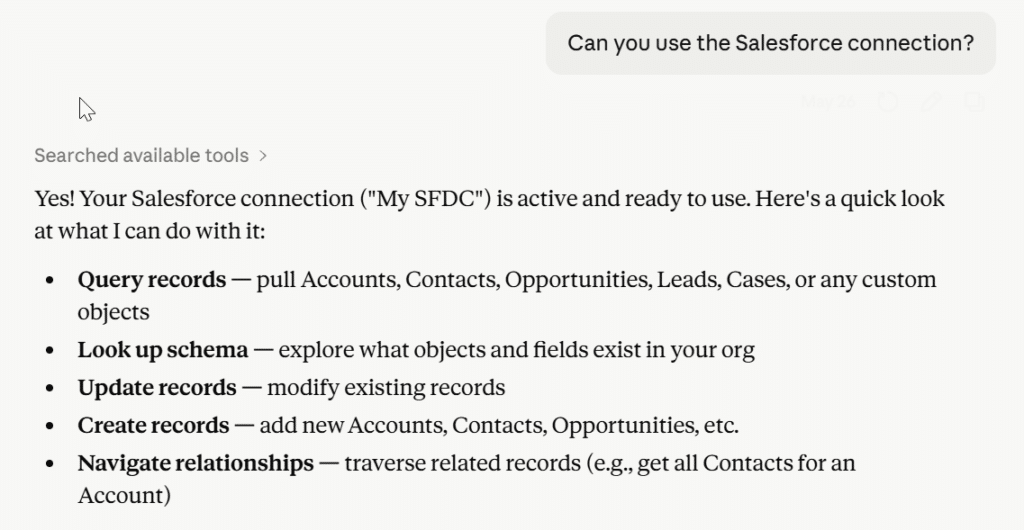
Click ‘Add’ and Claude will authenticate with Salesforce. Once connected, ask Claude if it’s connected:
What we’ve done with Claude and Salesforce:
- I think Claude is great for adding context to Opportunities and Leads. Create custom fields like ‘Claude Deal Status’ or ‘Claude MQL Reason’ and have Claude research the Deal or the Lead against what your company does.
- Claude will add nice context to the Opportunity or Lead – i.e. the ‘This Deal hasn’t been updated in 2 weeks and the last activity date is over 30 days ago’, or ‘based on this Lead’s LinkedIn profile they’re potentially a very good fit for your business’.
- We’ve found that ‘Claude Context’ helps to quickly answer high level questions about Deals and Leads.
- You can use Claude Co-work to schedule jobs in Claude that run against your Salesforce daily or weekly to add updated context to Opportunities and Leads.