
Salesforce has two key security changes coming in July, 2026: all users will be required to use MFA and System Admin users will be required to register a passkey for privileged access. Non-Admin users will be forced to use MFA – so if your users aren’t all using MFA now is the time to start turning that on. If you use SSO through Microsoft or Okta and that identity provider enforces MFA then nothing else will be required for those users. For non-Admin users we need to make sure everyone is either using MFA (code generated through app) or SSO.
The major change coming that will be enforced for Admins and privileged users (Modify All Data, View All Data, Customize Application, View Apex) is registering a Phishing Resistant MFA Method.
To enable a Phishing Resistant MFA Method in Salesforce:
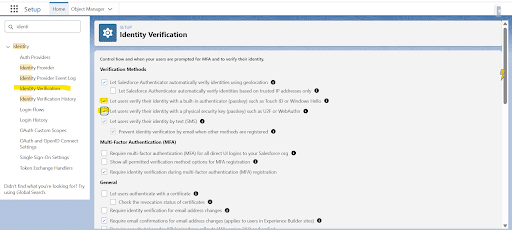
Go to Setup >> Identity Verification and enable:
- Let users verify their identity with a built-in authenticator (passkey) such as Touch ID or Windows Hello
- Let users verify their identity with a physical security key (passkey) such as U2F or WebAuthn
To register your own security key for logins:
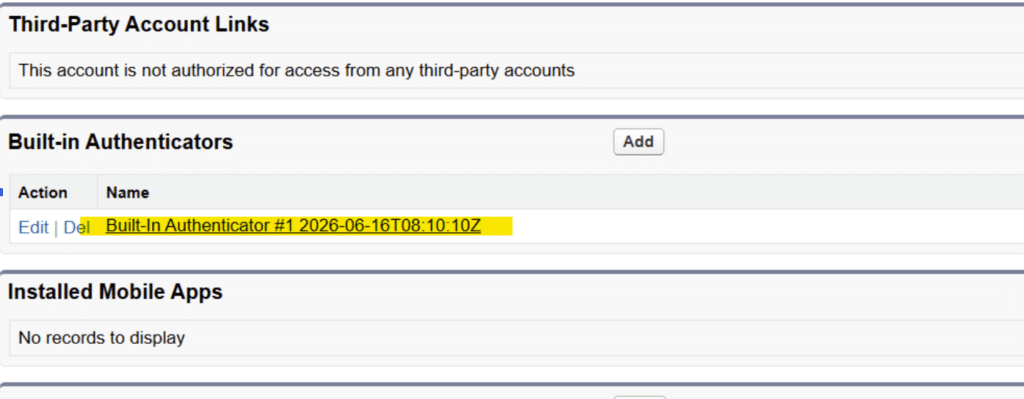
Go to Settings (in the top-right) then Advanced User Details then scroll down to Built in Authenticators:
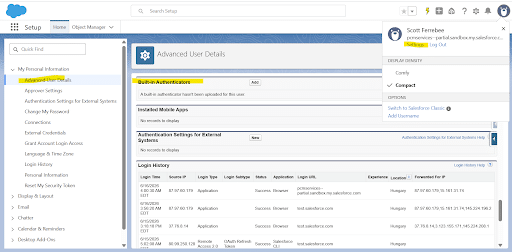
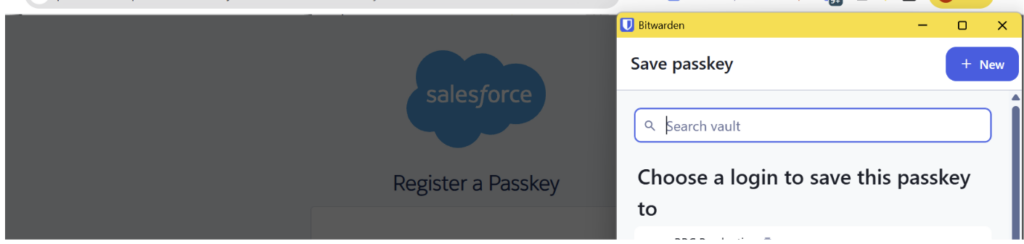
Click ‘Add’ under Built-in Authenticators. You’ll be asked to verify your identity (either via email or MFA) then you’ll be prompted to ‘Register a Passkey’:
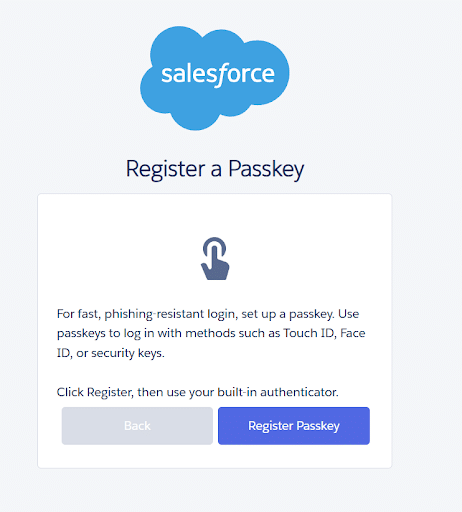
Depending on your browser/windows configuration you’ll be prompted to save your passkey. I use a password manager (BitWarden) and am prompted to save the passkey with my Salesforce login credentials:
After registering the Passkey on your user record you’ll see the Built-in Authenticator is now stored:
To test the Phishing Resistant login:
Open a new browser and go to login to this same Salesforce, you’ll be prompted to verify your passkey:
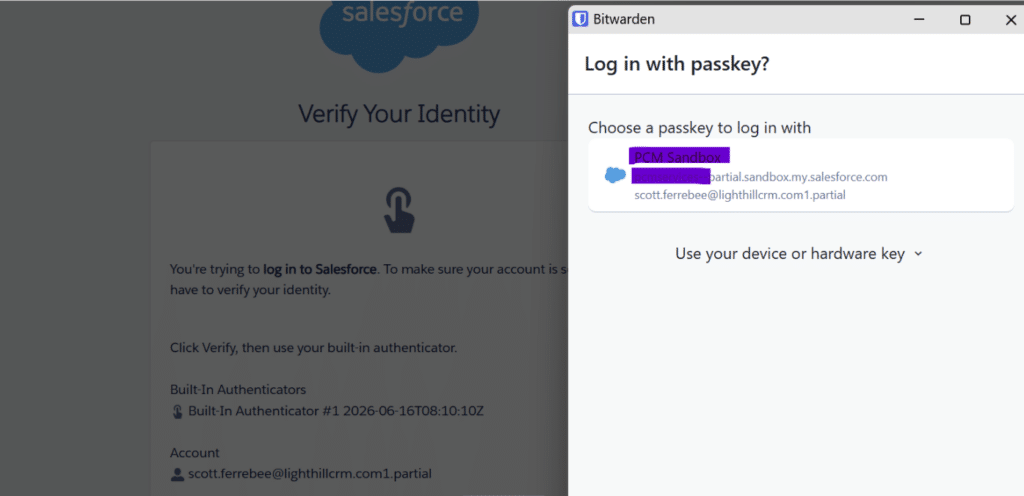
Select your passkey and Salesforce will log you in to the org.